
Introduction
Welcome, Nextrader! This comprehensive tutorial is your ultimate guide to harnessing the power of Nextrader's Auto Trader Bot to automate your Deriv V100 Index Higher/Lower trades. If you're looking to streamline your trading process, remove emotional biases, and implement a systematic approach to market participation, you've come to the right place.
This guide is specifically designed for both new and experienced traders who wish to leverage advanced deriv trading tools to execute strategies on the volatile yet popular V100 Index. By the end of this tutorial, you will be proficient in setting up and deploying your very own automated trading system, complete with sophisticated Martingale money management, allowing you to execute trades even while you're away from your screen.
Nextrader offers some of the most advanced deriv bots and binary bots available, making complex strategies accessible and efficient. We'll walk you through every click, every setting, and every decision point, ensuring you can confidently set up your automated trading journey.
What You Need Before Starting
- A Deriv.com Account: Both a real money account and a demo account are suitable. We highly recommend starting with a demo account for practice.
- A Nextrader (nextrader.live) Account: Fully registered and logged in. Remember, it's 100% free with no subscriptions or paywalls.
- Basic Understanding of Deriv Higher/Lower Contracts: Familiarity with how these contracts work on Deriv.
- Internet Connection: A stable connection to ensure seamless operation of the bot.
Step 1: Connecting Your Deriv Account to Nextrader
The first crucial step to automating your trades with Nextrader is to securely link your Deriv account. Nextrader integrates seamlessly with Deriv using their WebSocket API, ensuring real-time data and trade execution.
Get Live AI Trading Signals
Real-time non-repaint signals from 11 AI strategies — Volatility Indices, Forex, Gold & Crypto. No subscription, no paywall.
- Auto Trader Bot
- Digit Trader Bot
- 11 AI Strategies
- Live Telegram Signals
- Log in to Nextrader: Navigate to Nextrader App and log in to your Nextrader account. If you don't have one, sign up at Sign Up Free — Nextrader – it's quick and free.
- Access Account Settings: Once logged in, look for the "Accounts" or "Profile" section in your Nextrader dashboard. This is typically found in the main navigation menu or sidebar.
- Connect Deriv Account: Within the Accounts section, you'll find an option to "Connect Deriv Account" or "Add New Account." Click on this.
- Enter Deriv API Token: You will be prompted to enter your Deriv API token.
* Go to your Deriv account, navigate to "Settings" -> "API Tokens."
* Create a new token, ensuring you grant permissions for "Read," "Trade," and "Cashier" at a minimum.
* Copy the generated token.
* Paste this token into the designated field on Nextrader. Nextrader's App ID (67545) will usually be pre-filled, ensuring secure communication.
- Select Account Type: Choose whether you want to connect a "Real" or "Demo" Deriv account. For this tutorial, we strongly advise starting with your Deriv demo account to familiarize yourself with the bot's operation without financial risk.
- Confirm Connection: Click "Connect." Nextrader will verify the token. Upon successful connection, your Deriv account details (like balance) will appear in your Nextrader console, ready for multi-account support if you wish to add more later.
Step 2: Navigating to the Auto Trader Bot and Selecting Market
With your Deriv account linked, it's time to set up the core automation parameters using Nextrader's powerful Auto Trader Bot.
- Access the Auto Trader Bot: From your Nextrader dashboard, locate and click on the "Auto Trader Bot" option. This is where all the magic happens for automated trading.
- Choose Your Market:
* On the Auto Trader Bot interface, you'll see a market selection panel.
* Navigate to "Volatility Indices."
* From the list, select "V100 Index." This is our target market for this tutorial, known for its consistent volatility, making it suitable for automated strategies.
- Select Contract Type:
* Below the market selection, you'll find various contract types.
* Choose "Higher/Lower." This contract type allows us to predict whether the exit spot will be strictly higher or strictly lower than the entry spot.
- Review Initial Setup: At this point, you've specified what to trade (V100 Index) and how (Higher/Lower contracts). The Nextrader console will update to reflect these selections, preparing you for detailed strategy configuration.
Step 3: Configuring Trade Parameters and Martingale Money Management
This step is critical for defining how your bot will trade and, crucially, how it will manage your capital using the Martingale strategy.
- Set Initial Stake:
* Locate the "Initial Stake" field. This is the amount your bot will use for its first trade. Start with a small amount, especially on a demo account (e.g., $0.35 or $1).
- Define Trade Duration:
* For Higher/Lower contracts, you typically trade in "Ticks."
* Set the "Duration" (e.g., 5 ticks, 10 ticks). Shorter durations are common for scalping strategies, while longer durations give the market more time to move. For V100, 5-10 ticks is often a good starting point.
- Select Prediction:
* You'll see options for "Higher" and "Lower." You can choose one based on your market sentiment or leave it to the bot's strategy to decide if the strategy supports dynamic prediction. For this tutorial, let's assume the bot will determine the direction based on its signals, so ensure the bot is configured to act on both 'Higher' and 'Lower' signals.
- Implement Martingale Money Management:
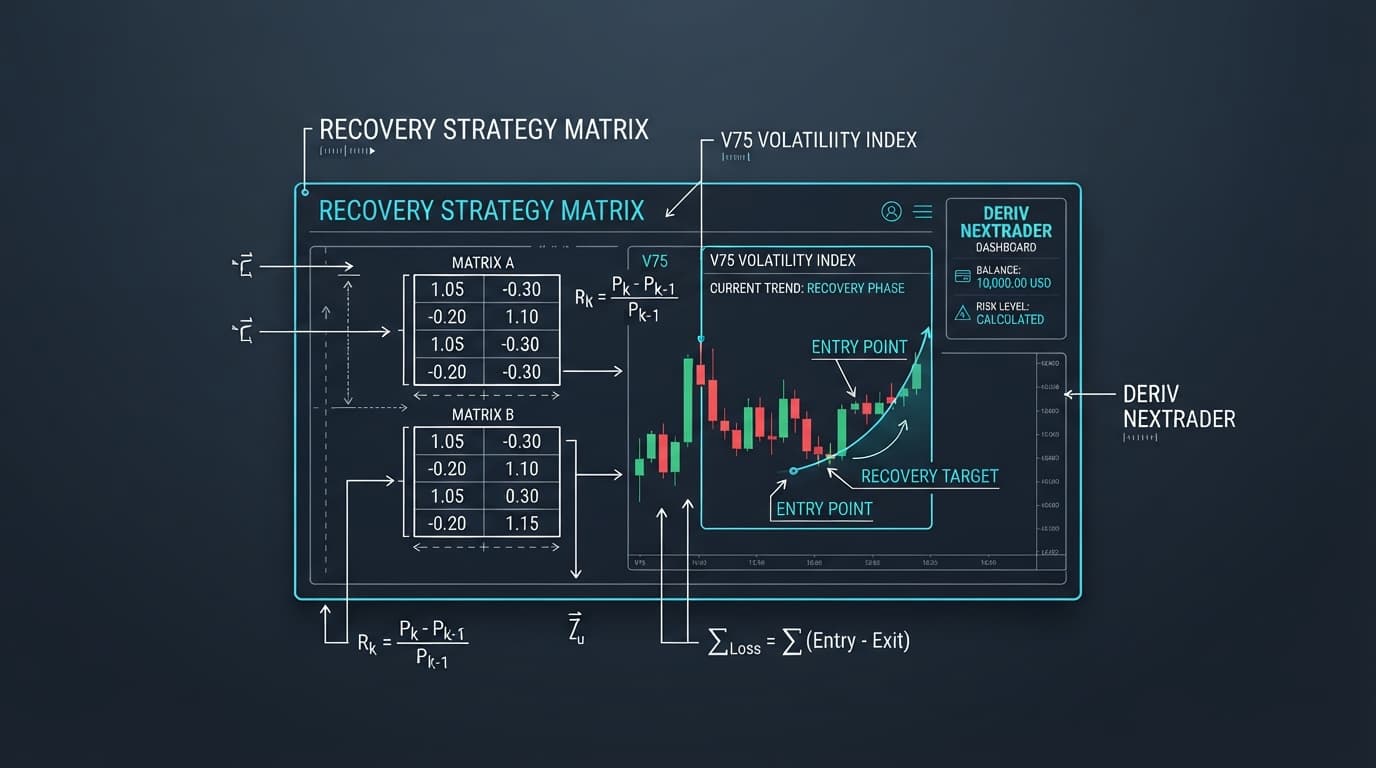
* Under the "Money Management" section, select "Martingale" from the dropdown menu. This is a popular strategy where you increase your stake after a loss to recover previous losses and make a profit.
* Martingale Multiplier: Input a "Multiplier" (e.g., 2.0 or 2.2). This defines how much your stake will increase after a losing trade. A 2.0x multiplier means your next stake will be double the previous one.
* Max Martingale Steps: This is crucial for risk control. Set a "Max Steps" limit (e.g., 3-5 steps). This prevents unlimited stake increases, protecting your capital. If the bot reaches max steps without recovering, it will revert to the initial stake.
Note:* While Martingale can be effective, it carries significant risk. Always understand the implications. Nextrader also offers "Fixed Stake" and the smart loss recovery "Mesa Milano" as alternatives, which you might explore later.
- Set Session Goals:
* Target Profit: Define a "Target Profit" for the entire bot session (e.g., $10, $50). The bot will automatically stop trading once this profit is reached.
* Stop Loss: Crucially, set a "Stop Loss" for the session (e.g., $20, $100). The bot will cease operations if your total losses for the session hit this amount, safeguarding your capital.
Step 4: Selecting a Trading Strategy and Timeframe
Nextrader's strength lies in its diverse range of AI strategies. Here, you'll choose which strategy will generate the real-time non-repaint trading signals for your bot.
- Choose an AI Strategy:
* In the "Strategy" section, you'll find a dropdown list of Nextrader's 11 named AI strategies. For automating V100 Higher/Lower, strategies that excel in capturing momentum or volatility are often preferred.
* Consider Smart Signals (our multi-indicator powerhouse, using 4+ indicators for high-confidence signals) or Smart Fusion (another multi-indicator approach).
* Alternatively, strategies like Volatility Pulse (based on Bollinger Bands) or Momentum Wave (MACD-based) could also be effective. For a robust start, let's select Smart Signals. This strategy is designed to only fire on CLOSED candles when a minimum of 3-4 indicators agree, ensuring high-quality, non-repainting signals.
- Select Timeframe:
* Next, choose the "Timeframe" for the signals. Nextrader offers 5min, 10min, 30min, and 1 hour signals.
* For V100 Higher/Lower, especially with Martingale, a shorter timeframe like 5min or 10min will provide more frequent signals and potential trading opportunities. A 5min timeframe allows the bot to react more quickly to market shifts.
- Set Confidence Level:
* Nextrader provides a "Confidence Level" for each signal (ranging from 30-85%). This indicates the strength of the signal.
* Set a "Minimum Confidence" threshold (e.g., 60% or 70%). The bot will only execute trades when a signal meets or exceeds this confidence level, helping to filter out weaker signals and increase potential win rates.
- Review Signal Details: The bot will utilize Nextrader's comprehensive signals, which include Entry price, Stop Loss, and Take Profit 1 & 2. While the bot automates the entry based on its settings, these details provide valuable context.
Step 5: Activating the Bot and Monitoring Performance
You've meticulously configured your deriv bot! Now it's time to unleash it and observe its performance.
- Final Review: Before activating, take a moment to carefully review all your settings:
* Deriv Account (Demo recommended!)
* Market: V100 Index, Contract Type: Higher/Lower
* Initial Stake, Duration
* Money Management: Martingale (Multiplier, Max Steps)
* Session Goals: Target Profit, Stop Loss
* AI Strategy: Smart Signals, Timeframe: 5min, Minimum Confidence
Ensure everything aligns with your trading plan and risk tolerance.
- Activate the Bot: Once satisfied, click the prominent "Start Bot" or "Activate Auto Trader" button. The bot will now begin listening for signals from the chosen AI strategy and execute trades on your Deriv account according to your parameters.
- Monitor Live Performance:
* Nextrader's "Real-time color-coded trading console" will immediately come alive. You'll see each trade executed by the bot, its entry price, outcome (win/loss), and the stake used (reflecting Martingale adjustments).
* Keep an eye on the "Live P&L tracking" section, which provides an up-to-the-minute overview of your profits and losses for the current session.
* The console also displays details like the current confidence level of signals, the specific AI strategy that fired, and the timeframe.
- Stopping the Bot: You can stop the bot at any time by clicking the "Stop Bot" button. The bot will also automatically stop if it reaches your defined Target Profit or Stop Loss.
- Start with Demo: Reiterate the importance of starting on a Deriv demo account. This allows you to test different settings, multipliers, and strategies without risking real capital, gaining confidence before transitioning to a real account.
Pro Tips
- Experiment with Timeframes & Strategies: While we used Smart Signals on 5min, try Trend Hunter (EMA crossover) on 10min or Reversal Radar (RSI) on 30min for V100. Different strategies and timeframes can yield varied results depending on market conditions.
- Optimize Martingale: The Martingale multiplier and max steps are critical. A lower multiplier (e.g., 1.8x) and more steps might offer more recovery attempts but requires more capital. A higher multiplier (e.g., 2.5x) is faster but riskier. Always backtest on demo.
- Utilize Confidence Levels: Don't just stick to 60%. Test higher confidence levels (e.g., 75-80%) for potentially fewer but higher-quality signals, or slightly lower (50-55%) for more frequent trading, especially with a robust money management strategy.
- Combine with Manual Insights: Even with automation, regularly check market sentiment. The Nextrader Telegram channel (Telegram) provides real-time signals across 30 markets, which can offer additional insights into overall market direction or confirm the bot's decisions.
- Explore Other Bots: Don't forget Nextrader's Digit Trader Bot for AI last-digit prediction (DIGITEVEN/ODD/OVER/UNDER/MATCH/DIFF) if you ever want to diversify your binary bots portfolio.
Start Trading Now
Ready to revolutionize your trading? Head over to Nextrader App to log in or Sign Up Free — Nextrader to create your free Nextrader account. For real-time updates and signals, join our community at Telegram.
Trading involves risk. Past performance does not guarantee future results.