
Introduction
Welcome to this comprehensive guide from Nextrader, your ultimate platform for free, powerful trading automation and signals. In this tutorial, we’re going to walk you through the precise steps to set up and deploy Nextrader’s Auto Trader Bot to automate your Deriv V100 index Rise/Fall trades. We’ll focus on leveraging the sophisticated Momentum Wave AI strategy, combined with the intelligent Mesa Milano money management system, to create a robust and automated trading experience.
This guide is designed for both novice traders looking to dip their toes into automated trading and experienced traders seeking to optimize their strategies on Volatility Indices. By the end of this tutorial, you will have a clear understanding of how to configure one of Nextrader’s most powerful deriv bots to trade on your behalf, freeing up your time while adhering to a disciplined trading plan. Get ready to transform your trading approach with advanced deriv trading tools that are 100% free and fully unlocked.
Our goal is to empower you to harness the full potential of Nextrader's AI-driven strategies and automated execution. You'll learn not just what to click, but why certain settings are chosen, ensuring you gain valuable insights into effective bot management.
What You Need Before Starting
Before we dive into the setup, ensure you have the following ready:
Get Live AI Trading Signals
Real-time non-repaint signals from 11 AI strategies — Volatility Indices, Forex, Gold & Crypto. No subscription, no paywall.
- Auto Trader Bot
- Digit Trader Bot
- 11 AI Strategies
- Live Telegram Signals
- A Deriv.com Account: Both a real or demo account will work. For beginners, starting with a demo account is highly recommended to test strategies risk-free.
- A Nextrader Account: If you don't have one, sign up for free at Sign Up Free — Nextrader. No subscriptions, no paywalls, all features unlocked.
- Basic Understanding of Rise/Fall Contracts: Familiarity with how Rise/Fall contracts work on Deriv and the characteristics of Volatility 100 Index (V100) will be beneficial.
Step 1: Connecting Your Deriv Account to Nextrader
The first crucial step is to securely link your Deriv trading account to Nextrader. This connection allows our Auto Trader Bot to execute trades directly on your behalf.
- Log in to Nextrader: Navigate to Nextrader App and log in to your Nextrader account. If it’s your first time, you’ll be prompted to sign up, which is quick and entirely free.
- Access the Deriv Connection Section: On your Nextrader dashboard, look for a prominent button or section labeled "Connect to Deriv" or "Deriv API Settings." This is usually found in the top navigation bar or a dedicated settings panel.
- Generate Your Deriv API Token:
* Go to your Deriv.com account.
* Navigate to "Settings" > "API Token."
* Click "Create a new token."
* Give it a name (e.g., "Nextrader Bot").
* Crucially, ensure you grant the necessary permissions: "Read," "Trade," and "Cashier" (for deposits/withdrawals if you wish, though "Trade" and "Read" are essential for the bot).
* Copy the generated API token. Keep this token secure, as it grants access to your Deriv account.
- Paste Token into Nextrader: Return to Nextrader, paste your Deriv API token into the designated input field, and click "Connect." Nextrader uses Deriv's official WebSocket API (App ID 67545) for secure communication.
- Verify Connection: Once connected, your Deriv account balance(s) (real and demo) should appear in the Nextrader interface. Nextrader supports multi-account functionality, allowing you to switch between different Deriv accounts seamlessly from within the platform. This robust integration makes Nextrader one of the most powerful binary bots available for Deriv traders.
Step 2: Navigating to the Auto Trader Bot and Selecting Market/Contract
With your Deriv account successfully linked, it's time to configure the core settings for your automated trading.
- Access the Auto Trader Bot: From your Nextrader dashboard, locate and click on the "Auto Trader Bot" section. This is your gateway to automating various contract types across different markets.
- Select Your Market: Within the Auto Trader Bot interface, you’ll see a list of available markets. For this tutorial, we are focusing on "Volatility Indices." Click on this category.
- Choose the Volatility 100 Index (V100): From the list of Volatility Indices, select "Volatility 100 Index." The V100 is known for its dynamic price movements, offering ample trading opportunities when managed correctly. Nextrader provides real-time non-repaint trading signals across all these markets, ensuring you always get reliable data.
- Specify Contract Type: Rise/Fall: After selecting V100, you will need to choose the contract type. Select "Rise/Fall." This is the most common and straightforward contract type, where you predict if the asset price will end higher or lower than the entry price after a specified duration. Nextrader also supports other markets like Forex, Gold, Silver, and Crypto, allowing you to diversify your automated trading portfolio.
Step 3: Configuring the Momentum Wave Strategy and Timeframe
Now we'll define the intelligence that drives your automated trades – the AI strategy and its operating timeframe.
- Select the Momentum Wave Strategy: Within the Auto Trader Bot's configuration panel, look for the "Strategy" dropdown menu. Nextrader offers 11 named AI strategies, each designed for different market conditions. For this tutorial, select "Momentum Wave."
* About Momentum Wave: This strategy is designed to identify momentum shifts and potential trend continuations or reversals. It primarily utilizes the Moving Average Convergence Divergence (MACD) indicator, which measures the relationship between two moving averages of an asset's price, providing powerful insights into market momentum. Nextrader’s Momentum Wave is one of our expert deriv trading tools optimized for clear, actionable signals.
- Choose Your Timeframe: Below the strategy selection, you'll find options for the signal timeframe. Nextrader provides signals for 5min, 10min, 30min, and 1 hour. For V100 and a momentum-based strategy like Momentum Wave, a shorter timeframe like 5min or 10min is often suitable for capturing quicker movements. Select your preferred timeframe. Remember, Nextrader's signals only fire on CLOSED candles, ensuring signal stability and preventing repainting. This means you're getting reliable, confirmed signals, not signals that disappear or change.
- Understand Signal Generation: Nextrader's Smart Signals require a minimum of 3-4 indicators to agree before a signal is generated. This multi-indicator agreement, along with the "Smart Fusion" and "Smart Signals" options, significantly enhances the reliability of the trading opportunities presented, giving you higher confidence levels (which range from 30-85% per signal). While Momentum Wave is powerful on its own, knowing the underlying robustness of Nextrader's signal generation provides an extra layer of assurance.
Step 4: Setting Up Mesa Milano Money Management
Money management is paramount in trading, and Nextrader’s Mesa Milano strategy offers a sophisticated approach to loss recovery.
- Navigate to Money Management: In the Auto Trader Bot's settings, locate the "Money Management" section.
- Select Mesa Milano: From the available options (Fixed Stake, Martingale, Mesa Milano), choose "Mesa Milano."
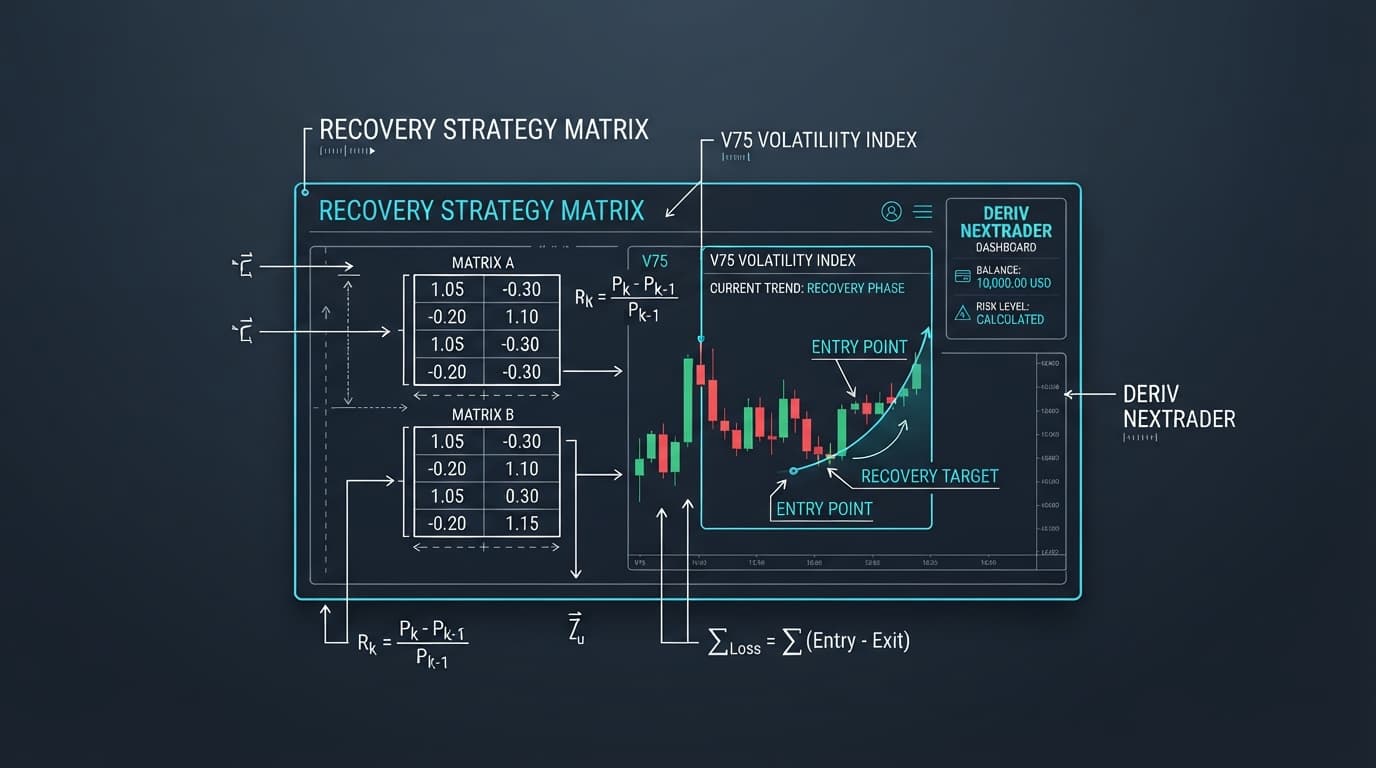
* About Mesa Milano: Unlike a simple Martingale, which doubles your stake after every loss, Mesa Milano is a smarter loss recovery system. It dynamically adjusts the stake size based on the number of consecutive losses and a calculated recovery factor, aiming to recover previous losses with a smaller increase in stake, thus mitigating risk compared to aggressive Martingale systems. It’s designed for smart, calculated recovery.
- Configure Mesa Milano Parameters:
* Initial Stake: This is the starting amount for your first trade. Begin with a small, manageable amount, especially when testing. For example, $0.35 or $1.00.
* Target Profit: Set a daily or session target profit for the bot. Once this is reached, the bot can be configured to pause or stop.
* Stop Loss (Bot Level): This is a critical safety feature. Set an overall maximum loss for the bot. If the cumulative losses reach this amount, the bot will automatically stop trading for the day or session. This protects your capital from extended drawdowns.
* Maximum Stake: Define the highest amount the bot is allowed to stake on a single trade. This acts as a cap to prevent overly aggressive stake increases, even with Mesa Milano’s smart recovery.
* Recovery Multiplier (or similar setting): Mesa Milano might have a specific setting to adjust how aggressively it attempts to recover losses. Start with conservative settings.
- Understand the Importance of Mesa Milano: By using Mesa Milano, you're employing a strategic approach to managing losing streaks, which are inevitable in trading. It aims to recover losses efficiently while maintaining a degree of capital preservation, making it a powerful component of your automated trading with Nextrader’s deriv bots.
Step 5: Reviewing Settings and Launching the Bot
With all your parameters configured, the final step is to review everything and activate your Auto Trader Bot.
- Comprehensive Review: Before launching, take a moment to carefully review all your chosen settings:
* Market: Volatility 100 Index
* Contract Type: Rise/Fall
* AI Strategy: Momentum Wave
* Timeframe: (e.g., 5min or 10min)
* Money Management: Mesa Milano
* Initial Stake: (e.g., $1.00)
* Bot Stop Loss: (e.g., $50)
* Bot Target Profit: (e.g., $20)
* Maximum Stake: (e.g., $10)
Nextrader also shows you the Entry price, Stop Loss, and Take Profit 1 & 2 for each individual signal, which can inform your overall bot settings.
- Check Trading Console: Nextrader features a real-time color-coded trading console. This console will display live P&L tracking, executed trades, and signal activity once the bot is running. Familiarize yourself with this interface for monitoring.
- Select Your Account: Ensure you have selected the correct Deriv account (demo or real) from your linked accounts that you wish the bot to trade on.
- Launch the Bot: Once you are satisfied with all the settings, click the "Start Bot" (or similar) button. Your Nextrader Auto Trader Bot will now begin to monitor the V100 Index, generate Momentum Wave signals on the chosen timeframe, and execute Rise/Fall trades on your Deriv account, applying the Mesa Milano money management strategy.
- Monitor Performance: Even with automation, it's crucial to periodically monitor your bot's performance, especially in the initial stages. Observe the win rate, profit/loss, and how Mesa Milano handles drawdowns. You can adjust your settings as needed based on real-world performance.
Pro Tips
- Start with Demo: Always, always begin by testing your Auto Trader Bot configuration on a Deriv demo account. This allows you to fine-tune your Momentum Wave strategy settings and Mesa Milano parameters without risking real capital.
- Experiment with Timeframes: While we suggested 5min or 10min for V100, the optimal timeframe can vary. Test the Momentum Wave strategy across 5min, 10min, 30min, and 1 hour timeframes to see which yields the best results for your specific risk tolerance and market conditions.
- Explore Other AI Strategies: Nextrader offers 11 distinct AI strategies like Trend Hunter (EMA crossover), Reversal Radar (RSI), Volatility Pulse (Bollinger Bands), and Cloud Walker (Ichimoku). Don't hesitate to experiment with these, or even the Smart Fusion and Smart Signals (4+ indicators) for multi-indicator approaches, once you're comfortable with the basics.
- Leverage Telegram Signals: For manual trading or cross-referencing, join our free Telegram channel at Telegram. You'll receive up to 30 real-time signals daily across 30 markets, every 5 minutes, offering an excellent way to stay informed or execute trades manually alongside your bot.
- Consider Digit Trader Bot: While this tutorial focused on Rise/Fall, Nextrader also provides a powerful Digit Trader Bot for AI last-digit prediction (DIGITEVEN/ODD/OVER/UNDER/MATCH/DIFF). It tracks extensive digit history and boasts 95%+ pattern recognition accuracy, offering another avenue for automated trading on Deriv.
Start Trading Now
Ready to elevate your trading with free, powerful automation? Sign up or log in to Nextrader today!
Access the platform at Nextrader App or register instantly at Sign Up Free — Nextrader.
Don't forget to join our Telegram channel for real-time signals: Telegram.
Trading involves risk. Past performance does not guarantee future results.