
Introduction
Welcome to this in-depth tutorial from Nextrader, your ultimate platform for intelligent trading automation. In this guide, we're going to walk you through the precise steps to set up and automate trades on the highly dynamic Deriv Volatility 75 Index (V75) using Nextrader's powerful Auto Trader Bot. Specifically, we'll leverage the sophisticated "Smart Fusion" AI strategy, combined with the intelligent "Mesa Milano" money management system, to create a robust, automated trading setup.
This tutorial is designed for both novice and experienced traders who are looking to harness the power of automation and advanced algorithmic strategies without any subscriptions or paywalls. By the end of this guide, you will be able to configure your Nextrader account to automatically execute Rise/Fall and Higher/Lower contracts on the V75 Index, optimizing for potential profit while managing risk effectively. You'll unlock the full potential of Nextrader's free deriv trading tools to build your own custom deriv bots.
What You Need Before Starting
Before diving into the setup, make sure you have the following ready:
- A Deriv.com Account: This is where your actual trades will be executed. You can use either a real or a demo account.
- A Nextrader Account: Our platform is 100% free; simply sign up at Sign Up Free — Nextrader.
- Basic Understanding of Trading: Familiarity with concepts like entry price, stop loss, and take profit will be helpful.
- Stable Internet Connection: Essential for uninterrupted bot operation and real-time signal processing.
Step 1: Connecting Your Deriv Account to Nextrader
The first crucial step is to securely link your Deriv account with Nextrader. This allows our platform to send trading instructions directly to your Deriv account via their WebSocket API.
Get Live AI Trading Signals
Real-time non-repaint signals from 11 AI strategies — Volatility Indices, Forex, Gold & Crypto. No subscription, no paywall.
- Auto Trader Bot
- Digit Trader Bot
- 11 AI Strategies
- Live Telegram Signals
- Log in to Nextrader: Navigate to Nextrader App and log in to your Nextrader account.
- Access Account Integration: Once logged in, look for the "Accounts" or "Integrations" section on your Nextrader dashboard. This is usually found in the sidebar or top menu.
- Add Deriv Account: Click on the option to "Add Deriv Account" or "Connect Deriv." You will be prompted to authorize Nextrader. Our platform uses Deriv App ID 67545 for seamless and secure integration. Follow the on-screen instructions, which will typically redirect you to Deriv's authorization page. Grant Nextrader the necessary permissions to trade on your behalf.
- Verify Connection: After successful authorization, your Deriv account details (e.g., account balance, account type – demo/real) should appear within Nextrader's "Accounts" section. Nextrader supports multi-account functionality, so you can connect multiple Deriv accounts if needed, though for this tutorial, one is sufficient. This step ensures that Nextrader's powerful deriv bots can communicate directly with your Deriv trading account.
Step 2: Selecting the Volatility 75 Index and Timeframe
With your Deriv account connected, it's time to tell Nextrader which market you want to trade and on what timeframe.
- Navigate to Auto Trader Bot: From your Nextrader dashboard, locate and click on the "Auto Trader Bot" section. This is where you'll configure your automated trading strategy.
- Choose Your Market: Within the Auto Trader Bot interface, you'll see a dropdown menu labeled "Market." Click on it and scroll down to select "Volatility 75 Index" (V75). The Volatility Indices are a popular choice due to their unique characteristics and continuous trading hours.
- Set the Timeframe: Next, select your desired timeframe for signal generation. Nextrader offers 4 timeframes: 5min, 10min, 30min, and 1 hour signals. For automating V75, a 5-minute or 10-minute timeframe can be suitable for capturing more frequent opportunities, while 30-minute or 1-hour signals might provide fewer but potentially higher-conviction trades. For this tutorial, let's choose "10min" as a balanced option, but feel free to experiment with others based on your trading style. Remember, Nextrader's non-repaint signals only fire on CLOSED candles, ensuring reliability.
Step 3: Configuring the Smart Fusion Strategy
Now we get to the core of your trading logic: selecting and configuring the "Smart Fusion" strategy. This is one of Nextrader's advanced AI strategies designed for comprehensive market analysis.
- Select Smart Fusion Strategy: In the "Auto Trader Bot" settings, locate the "Strategy" dropdown menu. Click on it and choose "Smart Fusion."
- Understand Smart Fusion: Smart Fusion is a sophisticated multi-indicator strategy that analyzes the market using a combination of various technical indicators. It's part of Nextrader's "Smart Signals" suite, meaning it requires a minimum of 4 indicators to agree before a signal is generated, significantly enhancing signal quality and reducing false positives. Unlike simpler strategies like Trend Hunter (EMA crossover) or Reversal Radar (RSI), Smart Fusion offers a holistic view of market conditions.
- Set Confidence Levels: Below the strategy selection, you'll find an option for "Confidence Level." Nextrader provides confidence levels per signal (ranging from 30% to 85%). For Smart Fusion, a higher confidence level (e.g., 65% or 70%) is often recommended to filter for only the strongest signals. Set your minimum desired confidence level here.
- Define Entry, Stop Loss, and Take Profit: Nextrader signals come with predefined Entry Price, Stop Loss (SL), and Take Profit (TP1 & TP2) levels. While the bot will use these, you can often set parameters to utilize these levels effectively. For automated Rise/Fall and Higher/Lower contracts, you'll typically define your stake, but understanding these levels is crucial for risk management. Ensure you review how the bot will interpret and use these suggested levels for your specific contract type.
Step 4: Implementing Mesa Milano Money Management
Effective money management is paramount for long-term success. Nextrader offers several options, and "Mesa Milano" is a smart choice for loss recovery.
- Access Money Management Settings: Within the "Auto Trader Bot" configuration, locate the "Money Management" section.
- Choose Mesa Milano: Click on the dropdown menu and select "Mesa Milano."
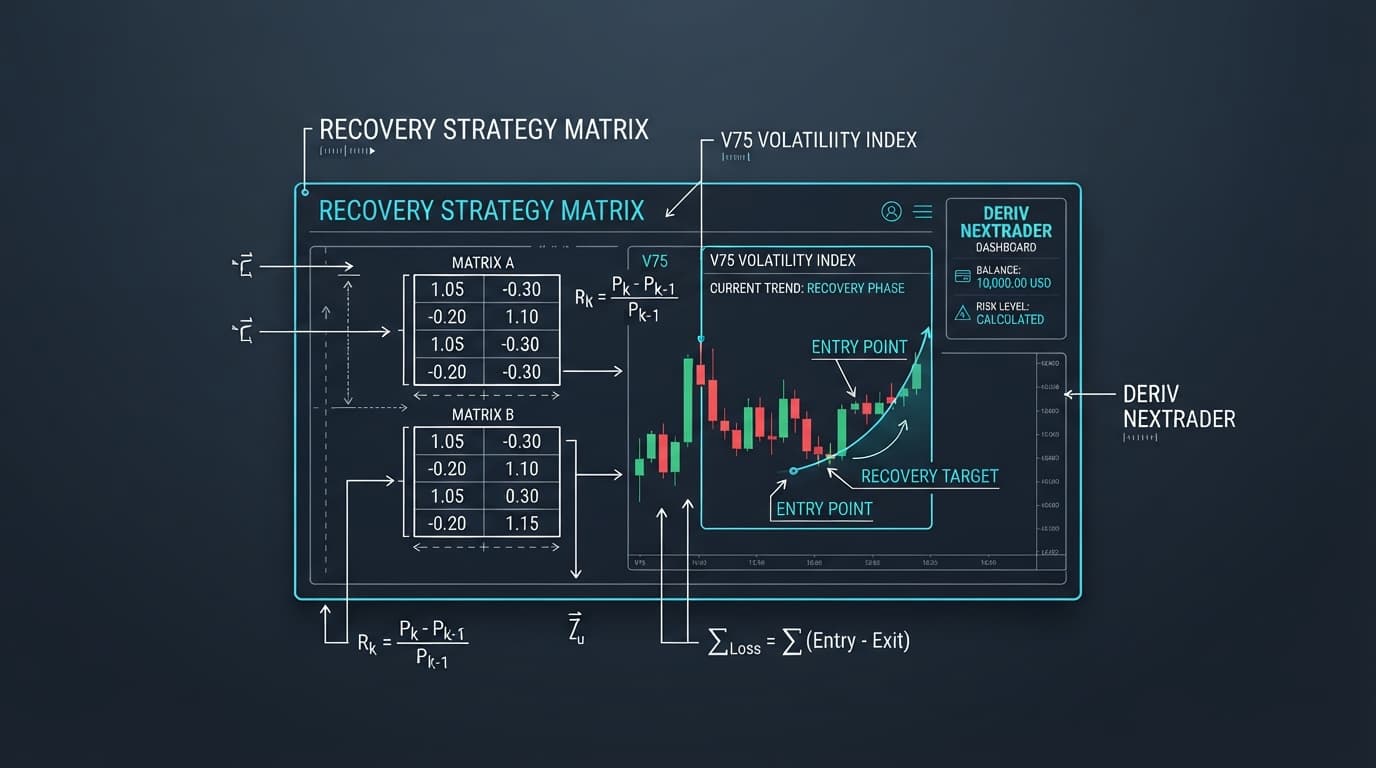
- Understand Mesa Milano: Unlike "Fixed Stake" (where your stake remains constant) or "Martingale" (which doubles your stake after a loss), Mesa Milano is a smart loss recovery system. It's designed to intelligently adjust your stake after a loss, aiming to recover previous losses with smaller, calculated increments rather than aggressive doubling. This strategy seeks to minimize risk exposure during losing streaks while still working towards recovery.
- Configure Mesa Milano Parameters:
* Initial Stake: Set your starting stake amount for each trade. It's highly recommended to start with a small percentage of your overall capital, especially when testing.
* Maximum Loss: Define the maximum amount of capital you are willing to risk before the bot pauses or stops. This is a critical risk management parameter.
* Recovery Factor/Parameters: Depending on the specific implementation in Nextrader's UI, you might have parameters to fine-tune how aggressively Mesa Milano attempts to recover losses. Always set these conservatively.
- Responsible Trading: While Mesa Milano is a smart system, no money management strategy guarantees profit. Always start with a demo account to understand its behavior and set parameters that align with your risk tolerance. These binary bots are powerful, but require careful handling.
Step 5: Reviewing Settings and Activating the Bot
You're almost ready to go! The final step involves a thorough review of your configurations and activating your automated trading bot.
- Comprehensive Review: Before activation, take a moment to review all your settings:
* Deriv Account: Ensure the correct Deriv account (demo or real) is selected and connected.
* Market: Volatility 75 Index.
* Timeframe: Your chosen timeframe (e.g., 10min).
* Strategy: Smart Fusion.
* Confidence Level: Your minimum confidence setting.
* Money Management: Mesa Milano, with your defined initial stake and maximum loss.
* Contract Type: Ensure it's set for Rise/Fall or Higher/Lower contracts, which Smart Fusion is designed for.
- Check Trading Console: Nextrader features a "real-time color-coded trading console." This console will display live signals, trade executions, and P&L. While the bot isn't running yet, mentally prepare to monitor this console once activated.
- Start with Demo (Highly Recommended): If you haven't already, ensure your Deriv account is set to "Demo" mode for initial testing. This allows you to observe the bot's performance, signal frequency, and the Mesa Milano recovery process without risking real capital.
- Activate the Bot: Once you are confident in all your settings and have started with a demo account, locate the "Start Bot" or "Activate" button within the Auto Trader Bot interface. Click it.
- Monitor Live P&L: Upon activation, your bot will begin listening for Smart Fusion signals on the Volatility 75 Index at your chosen timeframe. When a signal meets your confidence criteria, it will automatically place a trade on your Deriv account. You can track your "live P&L" directly within Nextrader's console, giving you real-time feedback on your bot's performance.
Pro Tips
- Start Small, Scale Smart: Always begin with a demo account and a minimal initial stake. Once you've gathered sufficient data and confidence in your specific V75 Smart Fusion setup, you can gradually increase your stake on a real account.
- Monitor and Adapt: While automated, your deriv bots aren't "set it and forget it." Regularly monitor the real-time color-coded trading console and live P&L tracking. Market conditions change, and what works today might need adjustments tomorrow.
- Explore Other Strategies: Nextrader offers 11 named AI strategies. Don't hesitate to experiment with others like Trend Rider (SuperTrend), Cloud Walker (Ichimoku), or Breakout Beast (ATR) on different markets or timeframes once you're comfortable with Smart Fusion.
- Leverage Telegram Signals: For an additional layer of insight or manual trading opportunities, join our Telegram channel at [Telegram]. We send up to 30 signals a day across 30 markets, every 5 minutes, which can complement your automated strategies or help you understand current market sentiment. You can even use these as binary bots inspiration.
Start Trading Now
Ready to revolutionize your trading experience? Head over to Nextrader App to log in or Sign Up Free — Nextrader to create your free account today. For real-time signals and community engagement, join our Telegram channel at [Telegram].
Trading involves risk. Past performance does not guarantee future results.