Introduction
Welcome to this in-depth tutorial from Nextrader, your ultimate platform for smart, free, and automated trading. In this guide, we'll walk you through the precise steps to set up and automate your trades on the Deriv Volatility 100 (V100) index using Nextrader's powerful Auto Trader Bot. Specifically, we'll focus on leveraging the "Momentum Wave" AI strategy, renowned for identifying key market momentum shifts, combined with the intelligent risk management of "Mesa Milano" money management.
This tutorial is designed for traders seeking to automate their Deriv V100 index trading, from beginners eager to explore the world of automated trading to experienced users looking to optimize their strategies with advanced deriv bots. By the end of this guide, you will have a fully configured Auto Trader Bot actively managing your V100 trades, aiming for consistent performance while mitigating risk through sophisticated money management. You'll learn how to transform Nextrader's real-time non-repaint trading signals into automated actions, freeing you to focus on strategy development rather than constant market monitoring.
Nextrader is 100% free, offering all features unlocked without any subscriptions or paywalls. Our platform provides real-time, non-repaint trading signals that fire only on closed candles, ensuring high reliability by requiring a minimum of 3-4 indicators to agree before generating a signal. With support for 4 timeframes (5min, 10min, 30min, 1 hour) and a wide array of markets including Volatility Indices, Forex, Gold, Silver, and Crypto, Nextrader stands out as a comprehensive solution for your trading needs.
What You Need Before Starting
Before diving into the setup, ensure you have the following ready:
Get Live AI Trading Signals
Real-time non-repaint signals from 11 AI strategies — Volatility Indices, Forex, Gold & Crypto. No subscription, no paywall.
- Auto Trader Bot
- Digit Trader Bot
- 11 AI Strategies
- Live Telegram Signals
- A Deriv Account: Both a real or demo account will work. We highly recommend starting with a demo account to test your setup without financial risk.
- A Nextrader Account: If you don't have one, sign up for free at Sign Up Free — Nextrader.
- Basic Understanding of Volatility Indices: Familiarity with how indices like V100 move and react to market conditions.
- Stable Internet Connection: Essential for uninterrupted automated trading.
Step 1: Connect Your Deriv Account to Nextrader
The first crucial step is to securely link your Deriv account with Nextrader, enabling our platform to execute trades on your behalf.
- Log in to Nextrader: Go to Nextrader App and log in to your Nextrader account. If you're new, complete the quick and free signup process.
- Navigate to Account Settings: Once logged in, look for the "Accounts" or "Settings" icon, usually found in the top right corner or sidebar navigation. Click on it.
- Connect Deriv Account: Within the settings, locate the option to "Connect Deriv Account" or "Manage API Tokens." Click this button.
- Enter Deriv API Token: You will be prompted to enter your Deriv API Token. To obtain this token:
* Log in to your Deriv account on the Deriv website.
* Go to "Settings" -> "API Tokens."
* Create a new token, ensuring you grant it the necessary permissions for "Read," "Trade," and "Cashier" (for real accounts) or "Trade" (for demo accounts). Copy the generated token.
- Paste and Connect: Paste the copied Deriv API Token into the designated field on Nextrader and click "Connect."
- Verify Connection: Nextrader will attempt to connect. Upon successful connection, your Deriv account balance (demo or real) will be displayed within Nextrader's interface, confirming the link. Nextrader supports multi-account functionality, allowing you to manage several Deriv accounts from a single Nextrader dashboard. This integration is seamless, leveraging Deriv's WebSocket API (App ID 67545) to ensure real-time data flow and execution for all your deriv trading tools.
Step 2: Navigate to the Auto Trader Bot and Select V100 Index
With your Deriv account connected, it's time to choose your market and prepare the Auto Trader Bot for action.
- Access Auto Trader Bot: From your Nextrader dashboard, locate the "Auto Trader Bot" option in the main navigation menu. Click on it to open the bot's interface. This is where you configure all your automated strategies, effectively turning Nextrader into your personal suite of binary bots.
- Select Market Category: Within the Auto Trader Bot, you'll see various market categories. Click on "Volatility Indices." Nextrader offers a comprehensive range of markets for automated trading, including V10, V25, V50, V75, V100, and even the ultra-fast 1Hz indices, alongside Forex, Gold, Silver, and Crypto.
- Choose V100 Index: From the list of Volatility Indices, select "Volatility 100 Index" (V100). This will load the specific trading parameters and signal data relevant to the V100 market, preparing the bot to receive and act upon signals for this particular asset.
Step 3: Configure the Momentum Wave Strategy and Timeframe
Now we'll define the core trading logic for your bot – the strategy and the timeframe for signal generation.
- Select AI Strategy: Inside the V100 Auto Trader Bot interface, look for the "AI Strategy" dropdown menu. Click it and choose "Momentum Wave."
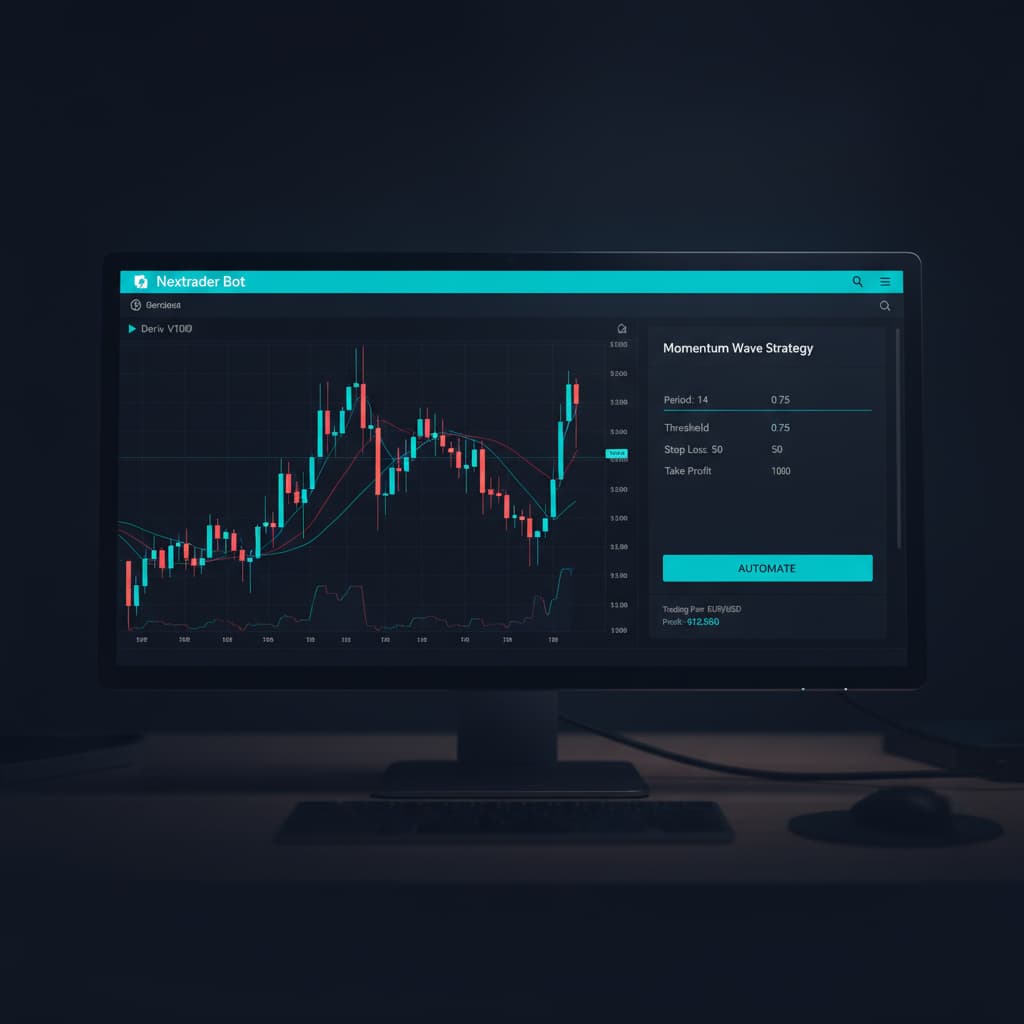
* Momentum Wave Explained: The Momentum Wave strategy is one of Nextrader's 11 named AI strategies (including Trend Hunter, Reversal Radar, Swift Scalper, Cloud Walker, and more). It is fundamentally based on the Moving Average Convergence Divergence (MACD) indicator, designed to identify the strength, direction, momentum, and duration of a trend. By analyzing the relationship between two moving averages, Momentum Wave generates signals when momentum shifts, indicating potential entry or exit points.
- Choose Timeframe: Below the strategy selection, you'll find the "Timeframe" option. For this tutorial, let's select "5 minutes." This means the bot will only consider signals generated on closed 5-minute candles, ensuring robust, non-repaint signals. Nextrader offers 5min, 10min, 30min, and 1 hour timeframes, allowing you to tailor your strategy to different trading styles.
- Set Contract Type and Duration: For Volatility Indices, the most common contract types are "Rise/Fall" or "Higher/Lower." For this guide, let's select "Rise/Fall." Then, set your desired "Trade Duration." A common duration for 5-minute timeframe signals might be 1-5 minutes, depending on your preferred execution speed and risk tolerance. For example, let's set it to "2 minutes."
Step 4: Implement Mesa Milano Money Management
Money management is paramount in automated trading. Nextrader offers sophisticated options, and for this tutorial, we'll configure the intelligent "Mesa Milano" system.
- Select Money Management: In the Auto Trader Bot configuration area, locate the "Money Management" dropdown menu. Click it and choose "Mesa Milano."
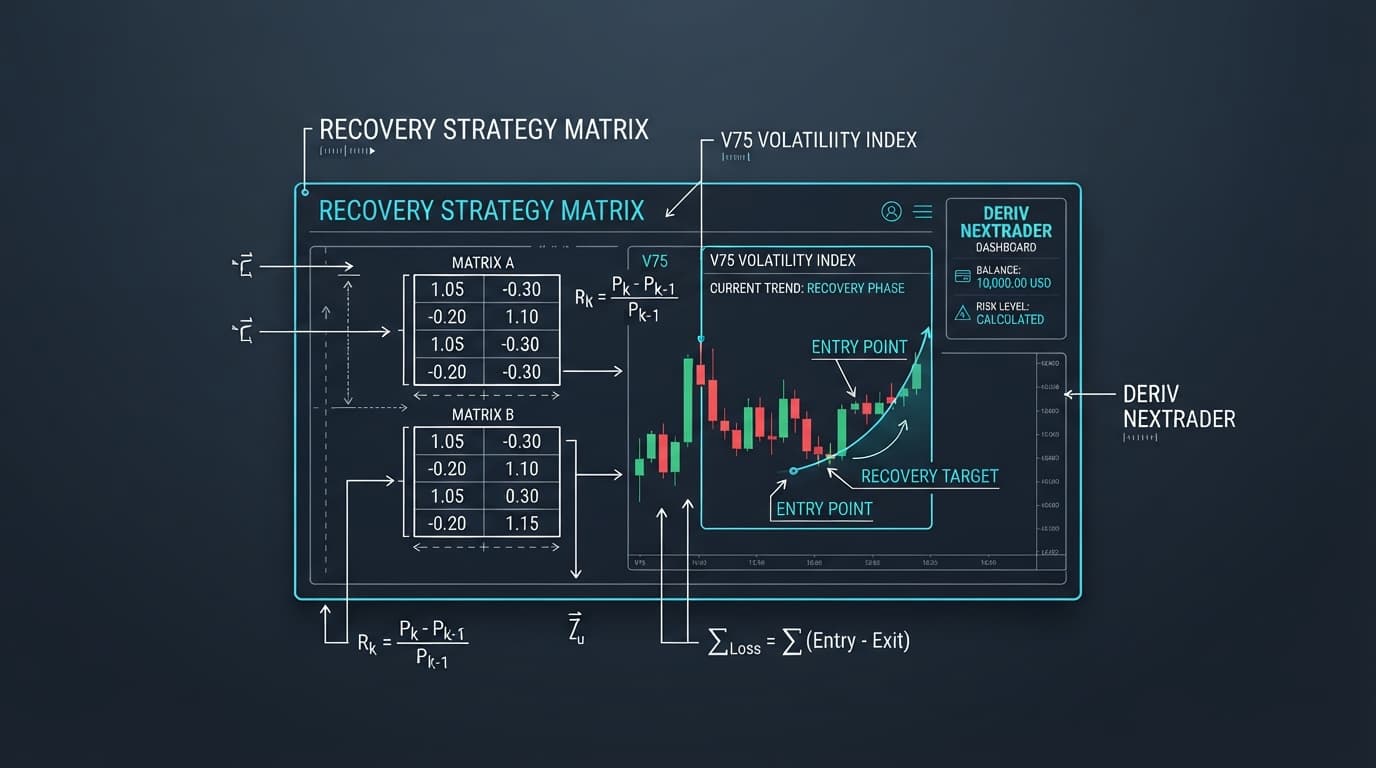
* Mesa Milano Explained: Unlike simple Martingale systems that aggressively increase stake after a loss, Mesa Milano is a smart loss recovery strategy. It's designed to recover previous losses efficiently without exposing your capital to excessive risk. It intelligently adjusts stakes based on a refined algorithm, aiming for a more sustainable recovery path. This makes it one of the most advanced deriv trading tools for risk management within our platform.
- Set Initial Stake: Define your "Initial Stake." This is the amount you wish to risk on your first trade. For example, you might start with "$0.35" or "$1.00" on a demo account. Always start small, especially when testing new strategies.
- Define Target Profit: Set your "Target Profit" for the entire trading session. This is the total profit you aim to achieve before the bot automatically stops. For instance, "$10.00." This is a critical risk management parameter, ensuring you lock in gains.
- Set Stop Loss: Crucially, set your "Stop Loss." This is the maximum amount of loss you are willing to incur in a single trading session before the bot automatically stops trading. For example, "$20.00." Never underestimate the importance of a well-defined Stop Loss when using any automated binary bots. Nextrader also offers "Fixed Stake" (constant stake per trade) and "Martingale" (doubling stake after loss) as alternative money management options, but Mesa Milano provides a more balanced approach.
Step 5: Review Settings and Start Automated Trading
With all parameters configured, the final step is to review everything and activate your automated trading strategy.
- Review All Settings: Carefully go through all the configurations you've made:
* Market: Volatility 100 Index
* AI Strategy: Momentum Wave
* Timeframe: 5 minutes
* Contract Type: Rise/Fall
* Trade Duration: 2 minutes
* Money Management: Mesa Milano
* Initial Stake: (e.g., $1.00)
* Target Profit: (e.g., $10.00)
* Stop Loss: (e.g., $20.00)
Ensure these settings align with your risk tolerance and trading goals.
- Observe Signal Confidence: Before starting, you'll notice Nextrader displays "Confidence Levels" for potential signals (typically ranging from 30% to 85%). While the bot will trigger based on its internal logic, observing these can give you a general sense of signal strength. For standard trades, Nextrader also provides Entry Price, Stop Loss, Take Profit 1, and Take Profit 2, though for Rise/Fall contracts, the primary focus is on the direction and duration.
- Start the Bot: Once you are satisfied with all the settings, click the prominent "Start Bot" or "Start Trading" button.
- Monitor Performance: The Auto Trader Bot will now begin executing trades automatically based on the Momentum Wave signals and Mesa Milano money management. You can monitor its performance in real-time using Nextrader's "color-coded trading console" and "live P&L tracking" dashboard. This console provides immediate feedback on executed trades, current profit/loss, and the bot's overall progress towards your Target Profit or Stop Loss limits. Always start with a Deriv demo account to thoroughly test your strategy before deploying it on a real account.
Pro Tips
- Start with a Demo Account: Always, always test your chosen strategy and settings on a Deriv demo account first. This allows you to understand how the bot performs in real market conditions without risking actual capital. Adjust your initial stake, target profit, and stop loss based on your demo results.
- Monitor and Adjust: Even automated bots need supervision. Regularly check Nextrader's "live P&L tracking" and the trading console. If market conditions change drastically or the bot isn't performing as expected, pause it and re-evaluate your strategy, timeframe, or money management settings.
- Explore Other Strategies: Nextrader offers 11 distinct AI strategies. Once comfortable with Momentum Wave, experiment with others like "Trend Hunter" (EMA crossover), "Reversal Radar" (RSI), "Swift Scalper" (Stochastic RSI), or the multi-indicator "Smart Fusion" and "Smart Signals" to see which performs best for the V100 index or other markets.
- Leverage Telegram Signals: Complement your automated trading by joining our Telegram channel at Telegram. You'll receive up to 30 signals daily across 30 markets, every 5 minutes. These can be used for manual confirmation, to identify market trends, or to find opportunities that your current bot setup might not be configured for.
Start Trading Now
Ready to automate your Deriv V100 trades and experience the power of Nextrader? Head over to Nextrader App to log in or Sign Up Free — Nextrader to create your free account today. For real-time signals and community insights, join our Telegram channel at Telegram.
Trading involves risk. Past performance does not guarantee future results.