Introduction
Welcome to this comprehensive tutorial from Nextrader, your ultimate platform for 100% free, real-time trading signals and automation tools. This guide is specifically designed for Deriv traders looking to leverage the power of automation to trade Volatility Indices. If you’re eager to automate your trading strategy without subscriptions or paywalls, you're in the right place.
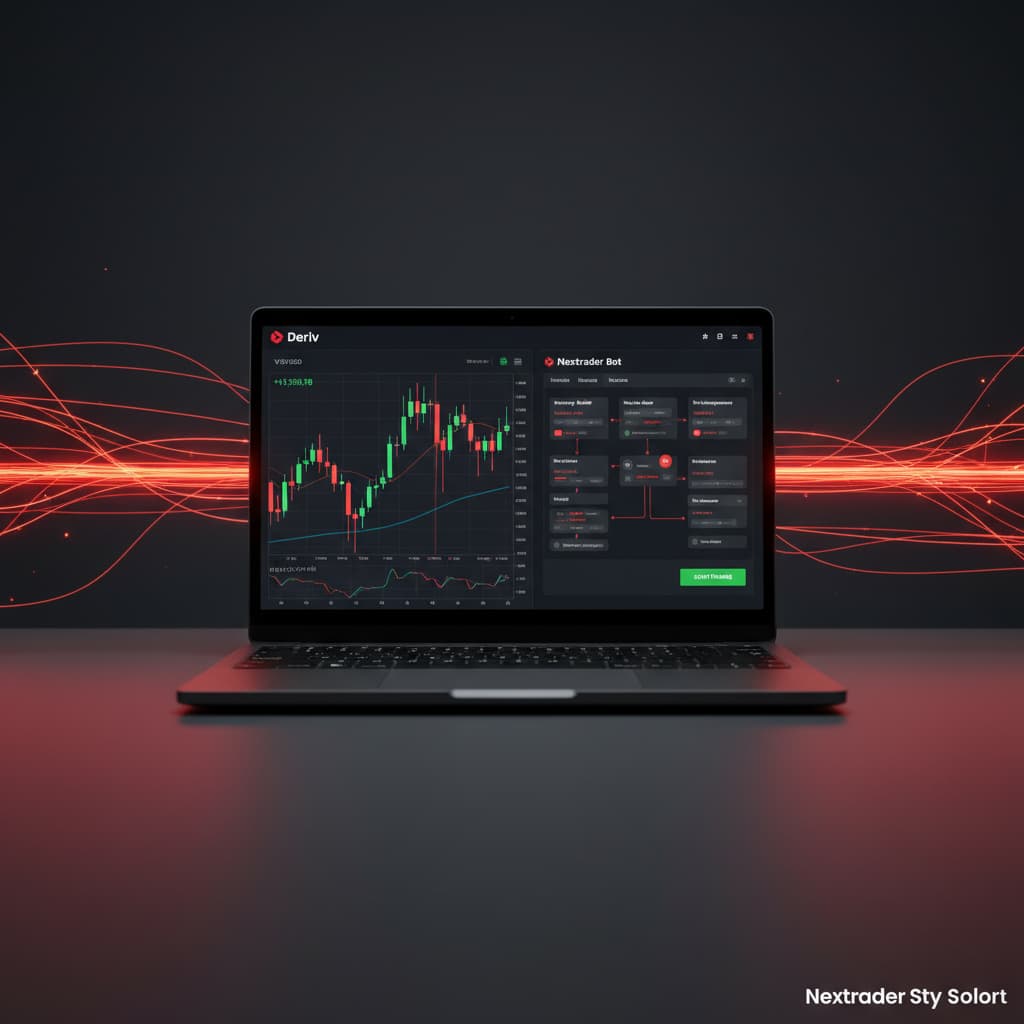
In this detailed, step-by-step walkthrough, we will show you how to set up Nextrader's cutting-edge Auto Trader Bot to automatically execute Rise/Fall contracts on the highly popular Deriv V75 Volatility Index. We'll be utilizing the sophisticated "Smart Fusion" AI strategy, known for its multi-indicator approach, combined with the intelligent "Mesa Milano" money management system for smart loss recovery. By the end of this tutorial, you will have a fully configured automated trading system, ready to operate on your Deriv account, freeing you from constant manual monitoring.
This tutorial is perfect for both novice and experienced traders who want to explore automated trading with powerful deriv bots, streamline their operations, and apply advanced strategies with Nextrader's intuitive interface. Get ready to transform your approach to the markets and experience the next level of trading efficiency.
What You Need Before Starting
Before diving into the setup, ensure you have the following ready:
Get Live AI Trading Signals
Real-time non-repaint signals from 11 AI strategies — Volatility Indices, Forex, Gold & Crypto. No subscription, no paywall.
- Auto Trader Bot
- Digit Trader Bot
- 11 AI Strategies
- Live Telegram Signals
- A Deriv Account: You'll need an active Deriv account (real or demo) to connect with Nextrader.
- A Nextrader Account: Sign up for a free account at nextrader.live if you haven't already. All features are unlocked from day one.
- Basic Understanding of Rise/Fall Contracts: Familiarity with how Rise/Fall contracts work on Deriv will be beneficial.
Step 1: Connect Your Deriv Account to Nextrader
The first crucial step to unleashing the power of Nextrader's automation is to securely link your Deriv account. Nextrader integrates seamlessly with Deriv via their WebSocket API (App ID 67545), ensuring real-time data flow and reliable trade execution.
To begin, log in to your Nextrader account at Nextrader App. Once logged in, navigate to the "Settings" or "Account" section, which is typically found in the top right corner or sidebar. Here, you will find an option to connect your Deriv account. Click on "Connect Deriv Account." You will be prompted to enter your Deriv API Token. To obtain this, log in to your Deriv account, go to "Settings" > "API Tokens," and generate a new token with all necessary permissions (Read, Trade, Payments, Admin). Copy this token and paste it into the designated field on Nextrader. After entering the token, click "Connect." Nextrader supports multi-account functionality, allowing you to manage several Deriv accounts from a single Nextrader dashboard, offering unparalleled flexibility for your deriv trading tools. Once connected, your Deriv account balance and trading history will be visible within the Nextrader interface, confirming a successful link.
Step 2: Navigate to the Auto Trader Bot and Select Your Market
With your Deriv account successfully connected, it's time to set up the automation. From the Nextrader dashboard, locate and click on the "Auto Trader Bot" option. This will take you to the bot configuration interface, the heart of Nextrader's automated trading capabilities.
Upon entering the Auto Trader Bot section, your first task is to specify the market and contract type. In the "Market" dropdown menu, you will see a wide array of options, including Volatility Indices (V10, V25, V50, V75, V100, 1Hz), Forex pairs, Gold, Silver, and various Crypto assets. For this tutorial, we will select "Volatility 75 Index" (V75), a popular choice among traders due to its consistent volatility. Next, in the "Contract Type" dropdown, choose "Rise/Fall." This specifies that the bot will be looking for signals to predict whether the asset price will rise or fall relative to the entry spot. Nextrader’s Auto Trader Bot is designed to automate both Rise/Fall and Higher/Lower contracts, making it a versatile platform for various binary options strategies.
Step 3: Configure the Smart Fusion Strategy and Timeframe
Now that you've selected your market and contract type, it's time to choose the intelligence that will drive your trades: the AI strategy. Nextrader boasts 11 named AI strategies, each designed with unique market conditions in mind. For this tutorial, we'll be using "Smart Fusion," a highly advanced multi-indicator strategy that analyzes various market factors to generate high-conviction signals.
In the "Strategy" dropdown, select "Smart Fusion." This strategy is renowned for its ability to combine insights from multiple indicators, ensuring that signals only fire on CLOSED candles when a minimum of 3-4 indicators agree, providing highly reliable, non-repaint trading signals. Below the strategy selection, you will find the "Timeframe" option. Nextrader offers 4 distinct timeframes: 5min, 10min, 30min, and 1 hour signals. For V75 Rise/Fall contracts, a 5-minute or 10-minute timeframe often strikes a good balance between signal frequency and reliability. For this guide, let's select "5min." As you select the strategy and timeframe, you'll notice the platform displays "Confidence levels per signal" (ranging from 30–85%), along with suggested Entry price, Stop Loss, and Take Profit 1 & 2, giving you a clear overview of the bot's potential actions.
Step 4: Set Up Mesa Milano Money Management and Trade Parameters
With your market, contract, strategy, and timeframe defined, the next critical step is to configure your money management system. This is where Nextrader truly shines, offering sophisticated options to protect your capital and optimize your gains. For this tutorial, we will implement "Mesa Milano," Nextrader’s smart loss recovery system.
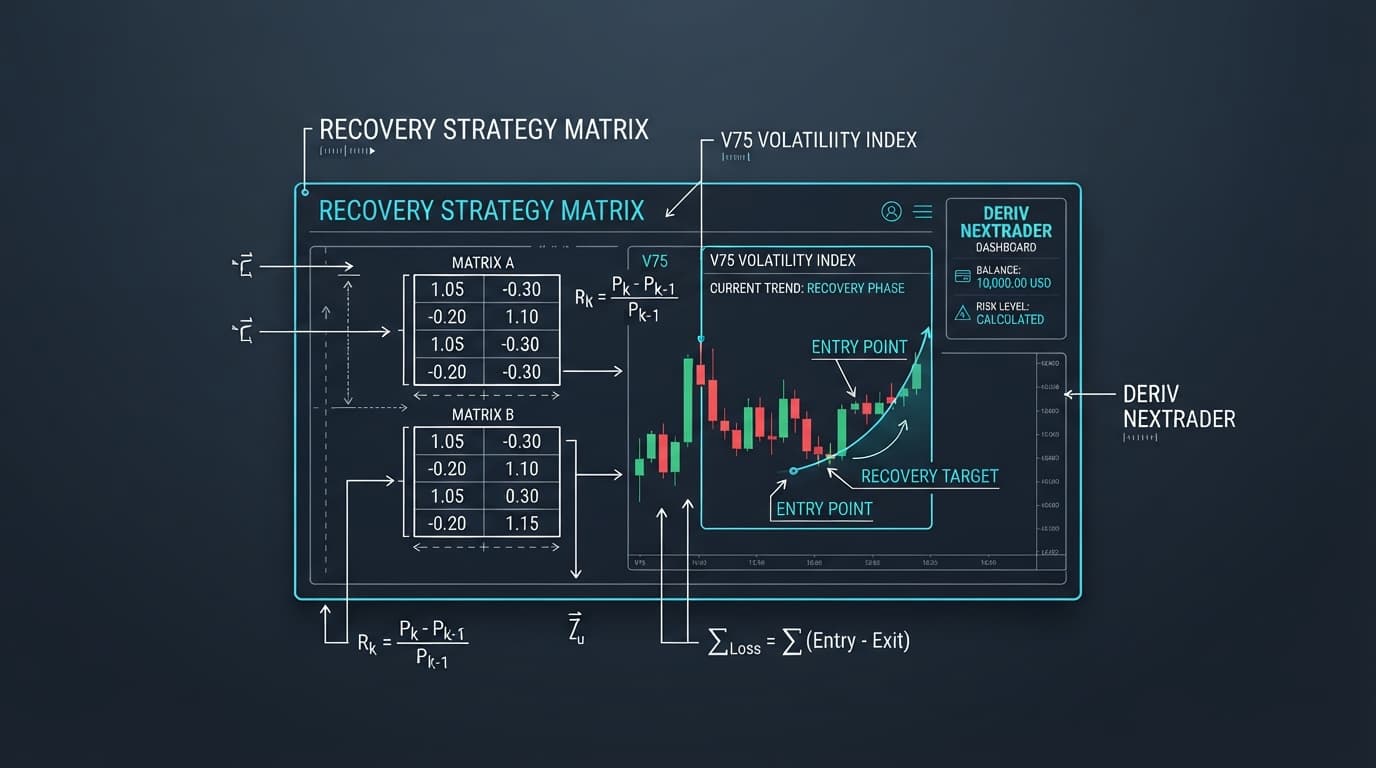
Under the "Money Management" section, select "Mesa Milano" from the dropdown. Unlike simpler systems like Fixed Stake or Martingale, Mesa Milano is an intelligent algorithm designed to recover losses efficiently without excessively increasing your stake, making it a powerful feature for long-term profitability. You will then need to set your "Initial Stake" (e.g., $1.00). This is the base amount the bot will use for its first trade. Carefully consider your risk tolerance and account size when setting this value. You can also define optional "Take Profit" and "Stop Loss" values for the bot. For example, setting a Take Profit of $50 means the bot will stop trading once your profit reaches this amount, securing your gains. A Stop Loss of $20 would halt the bot if your losses accumulate to that sum, protecting your capital. These parameters are essential for responsible and controlled automated trading, ensuring your deriv bots operate within your predefined risk boundaries.
Step 5: Review and Start Your Automated Trading
You're almost there! Before initiating your automated trading session, it's crucial to perform a thorough review of all your settings to ensure everything is configured exactly as intended. This final check can prevent unintended trades and ensure your binary bots operate optimally.
Carefully go through each setting: confirm you've selected "Volatility 75 Index" for the market and "Rise/Fall" for the contract type. Double-check that "Smart Fusion" is the chosen strategy and that your desired timeframe (e.g., "5min") is active. Verify that "Mesa Milano" is selected for money management and that your "Initial Stake," "Take Profit," and "Stop Loss" values are correctly set according to your trading plan. Once you are confident that all parameters are accurate, click the prominent "Start Bot" button. The Auto Trader Bot will then begin to actively monitor the V75 market, awaiting a Smart Fusion signal on a closed 5-minute candle with sufficient confidence. You can monitor its performance in real-time using the "real-time color-coded trading console" and track your "live P&L tracking" directly within Nextrader. Remember, you can pause or stop the bot at any time if market conditions change or if you wish to adjust your strategy.
Pro Tips
- Experiment with Timeframes: While 5min is a great starting point, try testing the Smart Fusion strategy on 10min or 30min timeframes for V75 in a demo account to see which best suits your trading style and market conditions.
- Leverage Confidence Levels: Pay attention to the "Confidence levels per signal." You might consider adjusting your stake or even pausing the bot during periods of lower confidence if you prefer a more conservative approach.
- Explore Other AI Strategies: Nextrader offers 11 AI strategies like "Trend Hunter" (EMA crossover) or "Reversal Radar" (RSI). Don't hesitate to test these with the Auto Trader Bot on V75 or other markets like Forex or Gold using a demo account.
- Utilize Telegram Signals: For manual trading or to cross-reference your bot's activity, subscribe to Nextrader's Telegram signals at Telegram. You get up to 30 signals/day across 30 markets, every 5 minutes, providing excellent additional insights.
Start Trading Now
Ready to experience the future of automated trading? Head over to Nextrader App to log in or Sign Up Free — Nextrader to create your free account today. For real-time signal alerts, join our community on Telegram at Telegram.
Trading involves risk. Past performance does not guarantee future results.