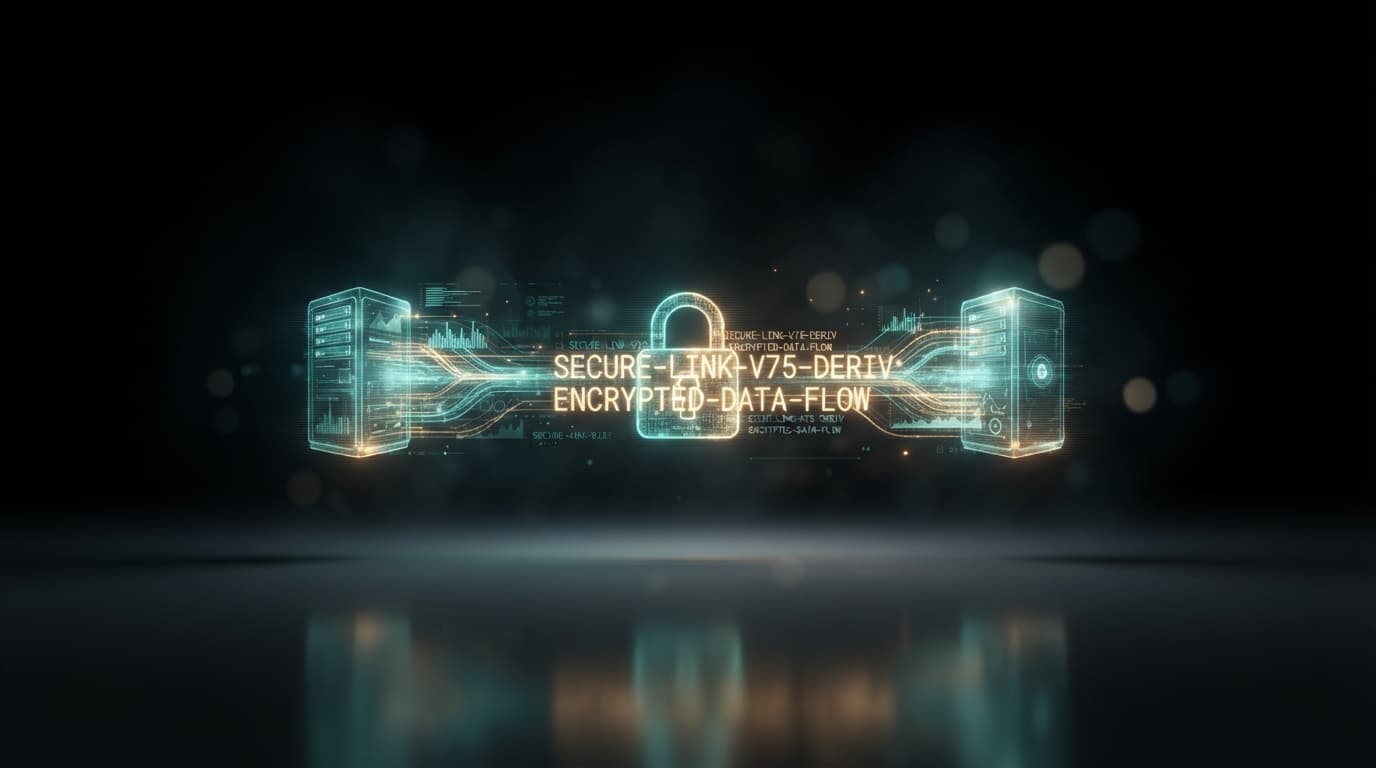
Logging into NexTrader Bot requires a scoped API token from Deriv to establish a secure WebSocket connection. Instead of exposing main account passwords, token authorization creates a direct link that restricts permissions solely to placing trades and checking account balances.
While standard Deriv Bot (DBot) setups require manually building block logic or uploading XML files, connecting to NexTrader Bot takes seconds using your token string.
This guide walks through generating your token, completing your deriv bot login, verifying your connection status, and launching automated strategies on synthetic indices, forex, metals, and crypto.
- 1 Generate Deriv API Token with Read and Trade scopes
- 2 Paste token into NexTrader Bot authorization field
- 3 Establish persistent WebSocket session and verify account balance
- 4 Select strategy from Bot Hub and launch automated trades
Step 1: Generate a Scoped API Token on Deriv
To connect NexTrader Bot safely, create a dedicated API token inside your Deriv security settings. The API token grants automated execution access without exposing password credentials or withdrawal access.
Load a Free Deriv Bot in One Click
Browse 747+ ready-to-run Deriv bots — Rise/Fall, Over/Under, Even/Odd, Match/Differ. No coding, free forever.
- 747+ Free Bots
- One-Click Load
- Rise/Fall & Digits
- Demo or Real
- Log into your main Deriv account dashboard.
- Navigate to Account Settings > Security and Safety > API Token.
- In the token name field, enter a clear label like
NexTrader-Bot-Session. - Select ONLY these two permission scope checkboxes:
* Read: Allows NexTrader Bot to display your live account balance and open positions.
* Trade: Allows NexTrader Bot to execute and manage contracts automatically.
- Leave Payments, Admin, and Trading Information unchecked so account management and withdrawal rights remain restricted.
- Click Create, then copy the generated alphanumeric token string.
Step 2: Open NexTrader Bot for Your Deriv Bot Login
Navigate directly to NexTrader Bot in your web browser.
Locate the API Token Input box situated near the top navigation panel of the NexTrader Bot interface. Entering your token here links your session directly to the platform without manual file imports or block configuration.
Step 3: Establish WebSocket Authorization with Your Token
With the input field located on NexTrader Bot, initiate your direct session:
- Paste your copied alphanumeric API token into the designated input field.
- Click Connect / Authorize.
- Check the connection status indicator in the dashboard header.
Clicking authorize creates a low-latency WebSocket (wss://) link with Deriv's API servers. A green status indicator confirms that NexTrader Bot has established a persistent authorization state. This persistent connection maintains your session in memory for fast execution without repeated logins.
Step 4: Verify Live Account Balance and Toggle Demo/Real Accounts
Confirm your active trading target once authorization completes:
- Review the dynamic account header on the NexTrader Bot dashboard. Your live balance and account type (Demo or Real) will display within two seconds.
- Switch between Demo and Real accounts by generating an API token for the target account on Deriv and pasting it into the input field on NexTrader Bot.
- Updating tokens re-authorizes your WebSocket connection immediately while preserving your active bot parameters and stake settings.
Step 5: Select Strategy in the Bot Hub
After verifying your login, open the Bot Hub on NexTrader Bot to select a trading strategy.
NexTrader Bot features 747+ ready-to-run binary bots across Free Bots and Premium Bots tiers, covering contract types like Rise/Fall, Over/Under, Even/Odd, and Match/Differ. Click Load Bot on your chosen strategy to load its execution logic directly into your workspace.
Step 6: Confirm Parameters and Run
Verify your execution settings on the dashboard to finish post-login setup:
- Select your target market asset, base stake amount, and contract duration or tick count.
- Set your profit target and stop-loss limits.
- Click the green Run button to start automated trading through your secure WebSocket session, or click Stop at any time to halt execution.
If Something Goes Wrong
Troubleshoot common connection issues with these standard steps:
Fix 1: Token Permission Error ("Invalid Scope")
- Symptom: Authorization fails or trade orders are rejected when clicking Run.
- Cause: The API token was generated without checking the
Tradepermission scope on Deriv. - Solution: Return to your Deriv API token settings, delete the faulty token, and create a new one with both Read and Trade checked. Re-paste the new token into NexTrader Bot.
Fix 2: Disconnected WebSocket State
- Symptom: The status indicator turns red or grey, or tick updates pause.
- Cause: Network disruption or browser idle state interrupting the active
wss://stream. - Solution: Refresh NexTrader Bot, re-paste your API token, and click Connect / Authorize.
Fix 3: Balance Not Updating
- Symptom: The header balance does not reflect recent deposits or account switches.
- Cause: Active session is holding a cached token or a Demo account token instead of a Real account token.
- Solution: Check your pasted token and re-authorize with a fresh token generated from the specific Deriv account (Demo or Real) you wish to trade on.
Access free, ready-to-run automated strategies today by visiting NexTrader Free Deriv Bots. Join our trading community in the official Telegram.
Trading involves risk. Past performance does not guarantee future results.