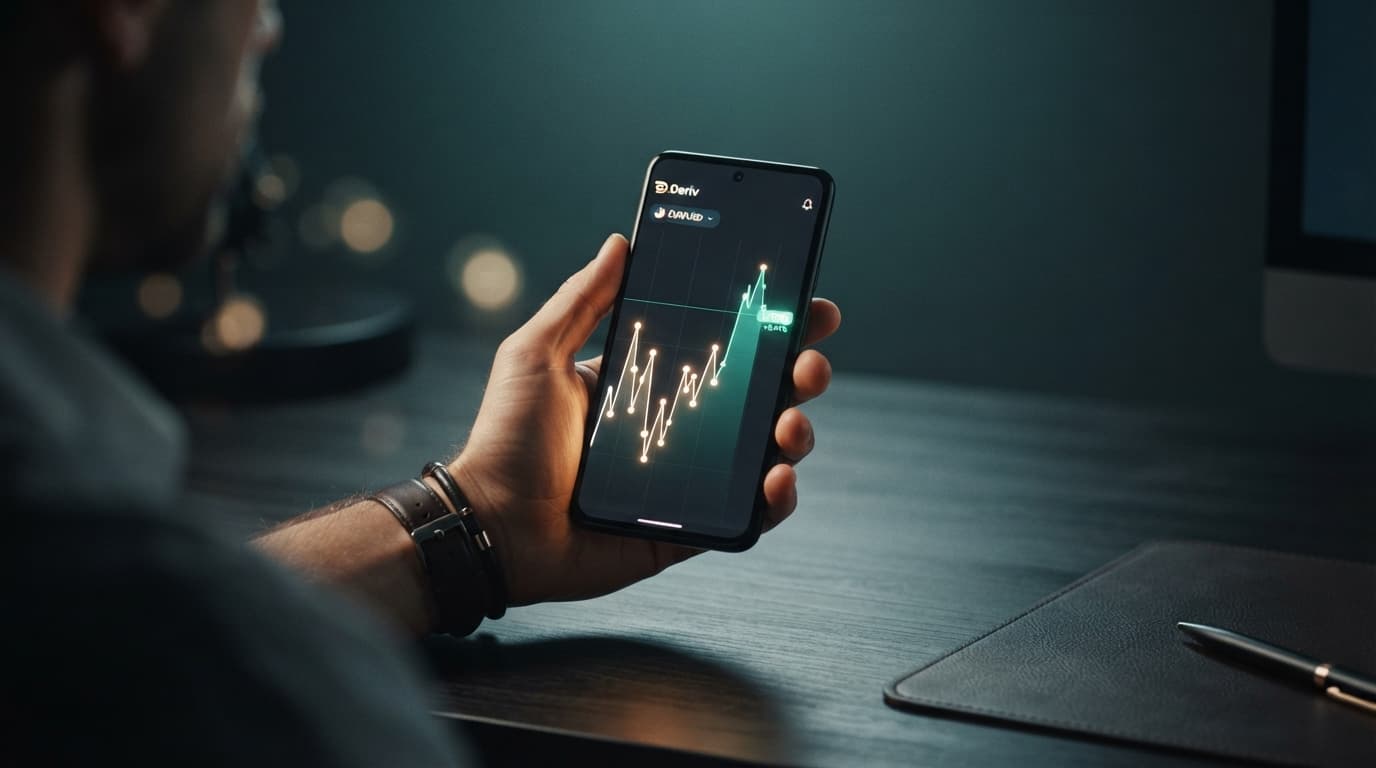
If you want to run deriv bot on mobile devices reliably, you must solve OS-level browser tab throttling, screen sleep timeouts, and WebSocket socket drops that interrupt live contract execution.
Standard mobile trading setups suffer when iOS Safari or Android Chrome aggressively suspends background tabs to conserve battery. When a browser pauses an active JavaScript runtime thread, active trades lose their network heartbeats, resulting in execution delays or missed exit triggers on rapid synthetic index ticks.
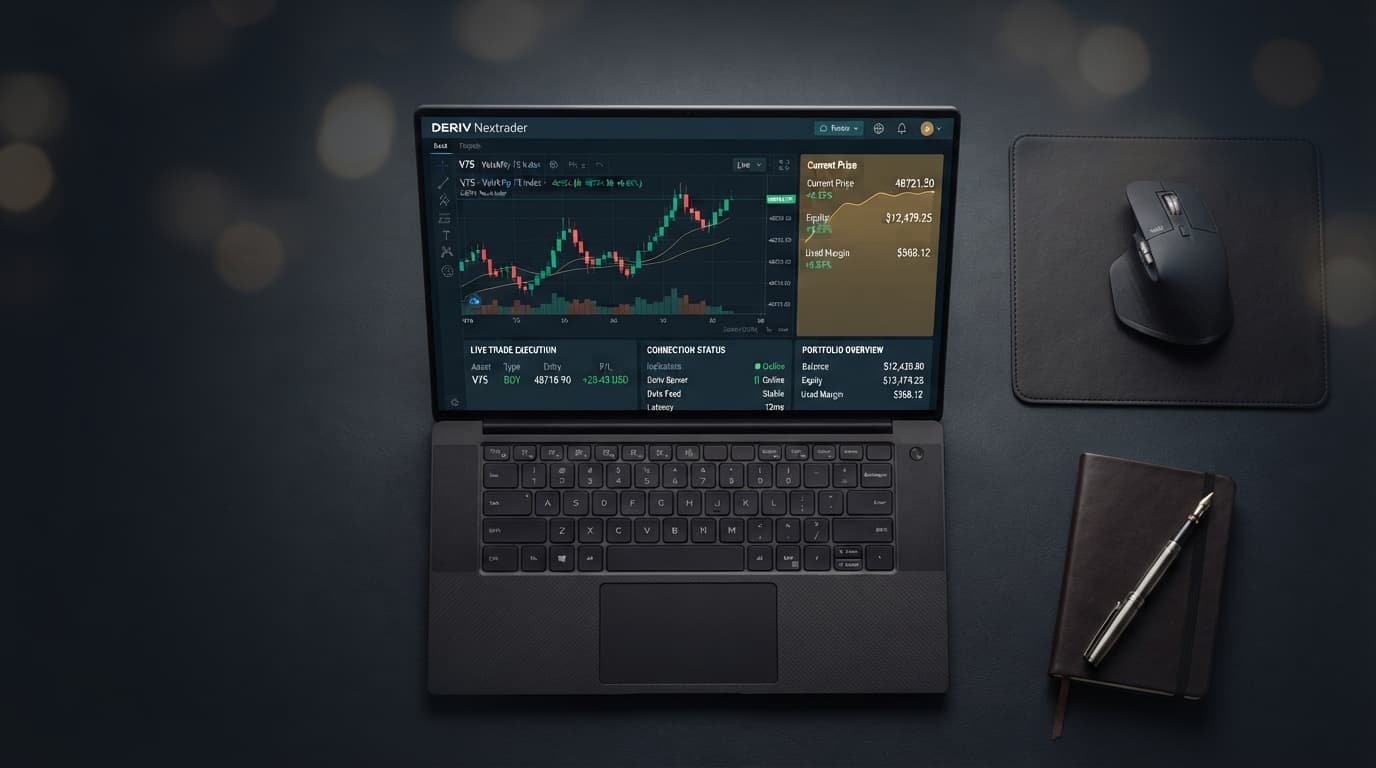
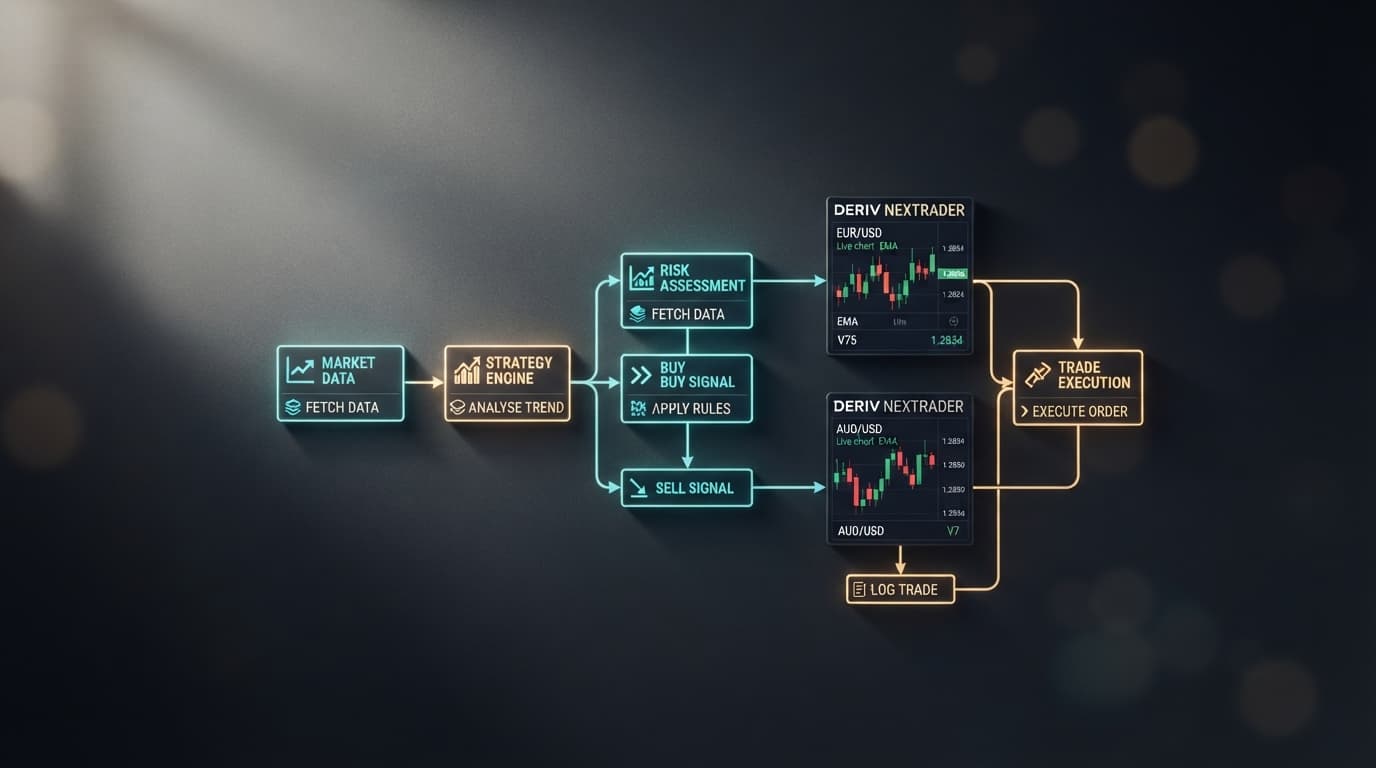
By routing strategy logic through NexTrader Bot, mobile traders bypass importing raw XML files on small screens. Connecting a dedicated API token establishes a persistent WebSocket connection directly from your mobile browser to run high-frequency strategies on Volatility 75 (V75) or Volatility 100 (1Hz) synthetic indices.
What You Need Before Starting
Setting up automated binary bots and algorithmic strategies on a phone or tablet requires four baseline components before launching live execution:
Load a Free Deriv Bot in One Click
Browse 747+ ready-to-run Deriv bots — Rise/Fall, Over/Under, Even/Odd, Match/Differ. No coding, free forever.
- 747+ Free Bots
- One-Click Load
- Rise/Fall & Digits
- Demo or Real
- Deriv Account: A verified Demo or Real account to generate API tokens and execute market orders.
- Mobile Browser: iOS Safari (version 14 or higher) or Chrome/Firefox on Android.
- Deriv API Token: A custom token generated with explicit
ReadandTradepermissions. - NexTrader Bot Platform: Access to Free Deriv Bots via NexTrader Bot.
Step 1: Generate and Link Your Deriv API Token on Mobile
Executing a deriv trading bot on a smartphone starts with authorizing communication between your broker account and the mobile trading dashboard via an API token.
- Log into your account using your mobile web browser and open account settings.
- Navigate to the API Token management tab within your account security settings.
- Assign a descriptive token name (for example,
Mobile-NexTrader-Bot), check the boxes for Read and Trade scope permissions, and tap Create. - Copy the newly generated 15-character alphanumeric token string to your clipboard.
- Open a new tab, navigate to NexTrader Bot, and tap the connection input field.
- Paste your token and tap Connect.
Once the connection handshake completes, the system validates the session via a secure WebSocket connection. Your current Demo or Real balance renders on the top header dashboard, confirming full authorization for order placement.
Step 2: Browse and Load Mobile-Friendly Bots in the Bot Hub
Traditional bot platforms like DBot force users to navigate visual block trees or manually load external XML strategy files—a frustrating process on a touchscreen. While DBot allows manual drag-and-drop block construction on desktop displays, configuring individual visual logic blocks on a mobile screen frequently leads to errors.
NexTrader Bot removes manual XML handling entirely through its integrated Bot Hub, providing pre-built block-based bots optimized for touch environments.
To load a strategy:
- Tap the Bot Hub menu on the mobile navigation bar.
- Filter the strategy library by contract type: Rise/Fall, Over/Under, Even/Odd, or Match/Differ.
- Filter by execution speed. Mobile traders operating on cellular data should prioritize 1-Tick or 1-Tick Turbo speed profiles to keep transaction durations short.
- Select a specialized bot built for high-speed execution, such as Rise Rocket, Under 8 Flash, Even Comet, Over 2 Blaze, Odd Bolt, or Fall Falcon.
- Tap Load Bot to load strategy parameters directly into your mobile workspace in one click.
Step 3: Adjust iOS and Android Battery Settings for NexTrader Bot to Prevent Tab Suspension
Operating Free Deriv Bots at NexTrader Bot on mobile hardware requires mitigating mobile operating system power-management routines. Both iOS and Android monitor background tab activity to preserve battery life, actively throttling or suspending idle browser threads after 15 to 30 seconds of non-interaction. If your browser suspends the tab while a bot holds an open trade, the WebSocket connection drops, stopping target profit or stop-loss evaluation routines.
Managing iOS Safari Execution
- Disable Auto-Lock: Navigate to iOS Settings > Display & Brightness > Auto-Lock and set it to Never while running active trading sessions.
- Prevent Page Refresh: Avoid switching away to heavy social media apps or video streaming while a session is active. iOS reallocates RAM away from Safari, forcing the trading tab to reload when reopened.
- Keep Tab Active: Ensure the browser window displaying NexTrader Bot remains in the active foreground.
Managing Android Chrome Execution
- Disable Battery Saver: Go to Android Settings > Battery > Battery Saver and ensure it is turned off during trading.
- Unrestricted Chrome Battery Usage: Long-press the Chrome icon, tap App Info > Battery, and select Unrestricted.
- Enable Wake Lock: NexTrader Bot utilizes browser display wake-lock APIs where supported, preventing the screen from dimming while the bot dashboard displays an active running state.
Step 4: Execute Test Runs on Demo Balance and Monitor WebSocket Latency
Before trading on a mobile network connection, test execution using your Deriv Demo balance to evaluate network performance and response times.
Select your Demo Account on the dashboard header, then configure your base stake (e.g., $1.00), target profit threshold (e.g., $5.00), and stop-loss parameters (e.g., $10.00) in the quick-config panel.
Tap Run to initiate real-time tick streaming over the WebSocket API.
Monitor the execution log and tick stream counter on the dashboard to ensure tick updates render continuously without freezing. If tick updates stutter over cellular data, switch your device connection between 5G/LTE and Wi-Fi to establish a lower-latency route to Deriv servers.
Step 5: Transition to Real Balance and Utilize Mobile Risk Controls
Once your mobile browser demonstrates stable response times without dropping WebSocket frames during Demo runs, you can switch to live execution.
- Select your Real Account on the dashboard.
- Verify your risk parameters in the panel, setting base stake, target profit, and stop-loss limits according to your account balance.
- Tap Run to launch one-click automated execution.
During active trading, use the responsive Stop control to halt execution instantly if market volatility surges or cellular coverage drops. Tapping Stop transmits an immediate cancellation command through the WebSocket API to prevent subsequent contract purchases.
Pro Tips for Mobile Bot Optimization
To maximize execution efficiency and maintain platform stability when running automated strategies on mobile devices, apply these practical operating habits:
- Avoid Excessive App Switching: Keep NexTrader Bot as the active primary tab in Safari or Chrome. Switching between apps causes mobile OS power-management routines to freeze socket streams.
- Select High-Speed Contracts on Mobile Networks: Utilize 1-Tick Turbo speed bots like Even Comet, Fall Falcon, Rise Rocket, Over 2 Blaze, or Odd Bolt. Short contract durations reduce exposure to network connection fluctuations while trading Volatility 10, Volatility 75, or Volatility 100 (1Hz) synthetic markets.
- Claim Welcome Pack Upgrades: If your Deriv account was opened through NexTrader, check eligibility at gifts.nextrader.live. Eligible traders can claim the NexTrader Welcome Pack, which unlocks premium XML bots, 3 months of Bot Hub Premium, and 3 months of access to the VIP signal channel.
- Re-establish Sockets After Network Handoffs: Switching from a home Wi-Fi network to mobile cellular data changes your device's IP address and severs the active socket connection. If your network switches mid-session, tap Stop, refresh your browser tab at NexTrader Bot, and tap Run to initiate a clean WebSocket session handshake.
Start Trading on Mobile Now
Ready to elevate your mobile trading workspace? Access free automated tools now at NexTrader Bot. If you need a fresh broker connection, create an account via Sign Up Free — Nextrader to check eligibility for the free Welcome Pack upgrade. Join our growing community of algorithmic traders on Telegram at Telegram to exchange technical tips, strategy settings, and operational updates.
Trading involves risk. Past performance does not guarantee future results.